
The Listing Editor at a glance
The Listing Editor at a glance
The Listing Editor is like Etsy's own listing editor, with extra help built in. You get the same fields you know, plus the tools and information you need to build a better listing. Our recommendations come from the Etsy Seller Handbook and ecommerce best practices, so you're not guessing what "good" looks like.
Open a listing
Go to the Listing manager and click any listing. It opens in the editor, with every field on one page.
On a computer, the page has two parts:
The left side holds the listing fields: title, description, images, tags, and the rest.
The right side is a sidebar with your sync status, completion score, stats, and tools.
A bar along the bottom of the screen holds your save and publish buttons.
Check your sync status
The first card in the sidebar is the Synchronize card. It shows when Listadum last synced this listing, for example "Last sync: 2 hours ago."
If someone changed the listing on Etsy since then, the card says Newer version available. Click Synchronize to load the latest version from Etsy. Do this before you start editing, because synchronizing replaces your unsaved changes.
Want the details? See How listing synchronization works.
The completion score
Right below the Synchronize card is the Completion score card. It gives you a live score from 0 to 100 for how complete your listing is against Etsy's guidelines. It looks at your title, description, images, tags, and more, and it updates as you edit.
You'll also see the score as a small badge in the bottom bar. Hover over it to see what's holding the score back.
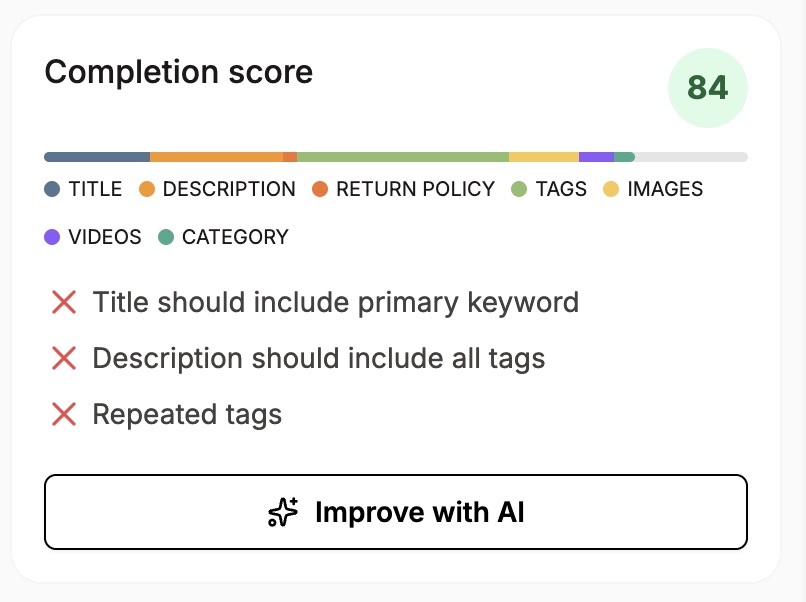
A score of 100 won't magically bring views and sales. But if a listing isn't getting traction, the completion score is a great place to start. To learn how issues are found, see How Automatic Issue Detection works.
Every section works the same way
Each section of the editor shows you three things:
Any issues we detected.
What we recommend to fix them.
Usually, the tool to fix it right there.
So you're never told "your title is too short" without a way to do something about it.
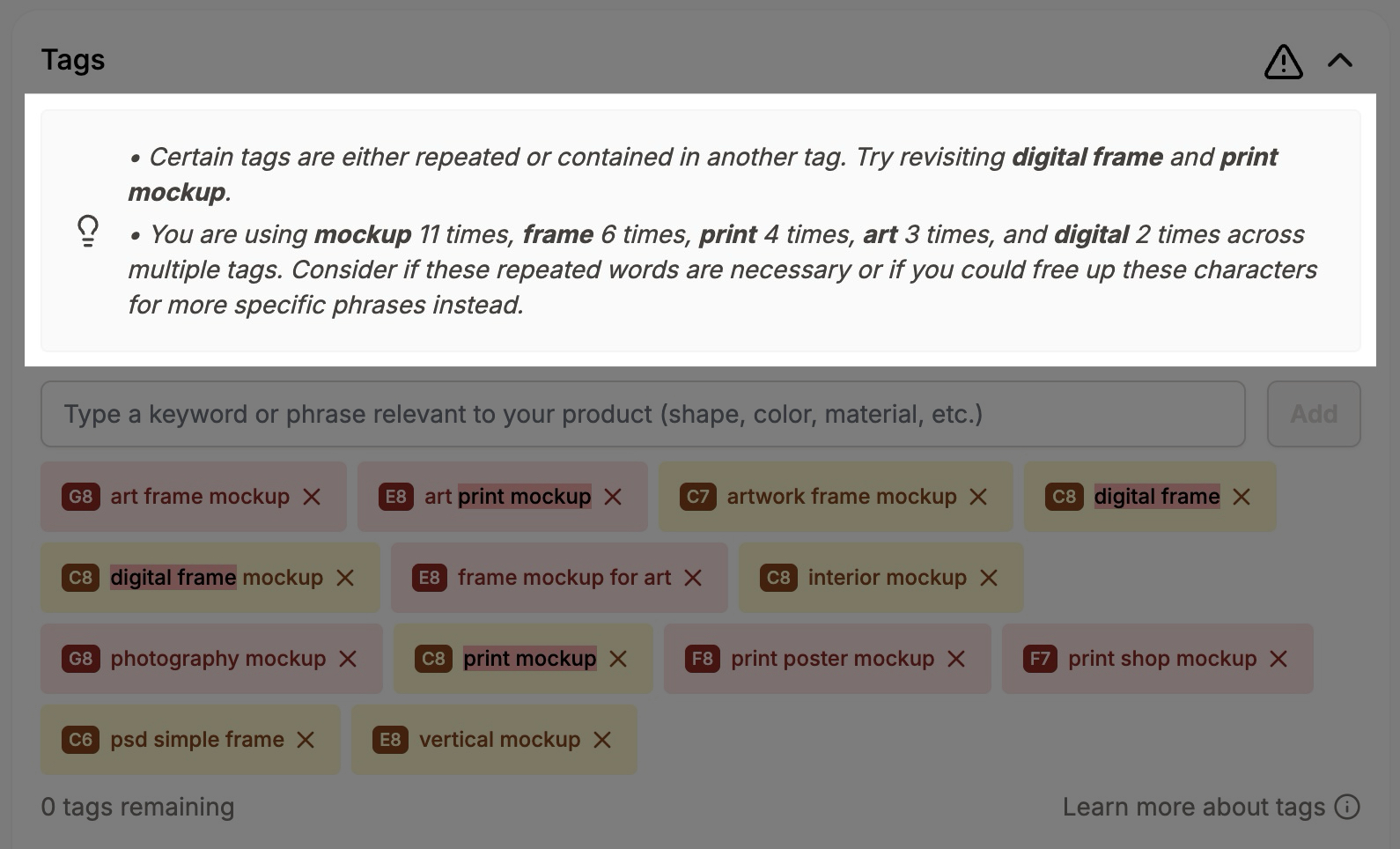
Each section has its own article:
Long listing? Use Quick nav in the bottom bar to jump straight to a section.
Save your changes
There's no autosave, so remember to save before you leave. The save button sits in the bottom right corner of the screen. Its label depends on the listing:
Save draft for a draft listing.
Save changes for any other listing.
Saving sends all your edits at once, not one section at a time. It doesn't change the listing's state. A draft stays a draft, and an active listing stays active.
The button stays grayed out until you change something. It also stays grayed out while a section has an error. When that happens, the bottom bar shows "Some sections have errors:" with a link to each section to fix.
Click the small arrow next to the save button for more options. If you opened the listing from the Listing manager, you'll see Save & next. It saves this listing and opens the next one in your list, which is handy when you're working through several listings in a row.
Publish a listing
If the listing isn't active on Etsy, you'll see a second button next to the save button:
Publish for a draft.
Re-publish for a listing that's inactive, sold out, or expired.
Publishing saves your edits first, then publishes the listing on Etsy.
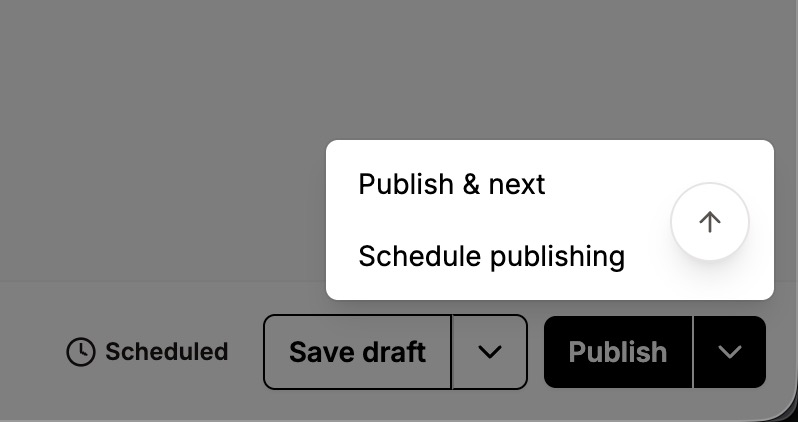
Click the arrow next to the publish button for more options:
Publish & next (or Re-publish & next) publishes this listing and opens the next one. You'll see it when you opened the listing from the Listing manager.
Schedule publishing lets you pick a date and time. Listadum then publishes the listing for you. See Scheduling listings with the Listing Scheduler. A scheduled listing shows a Scheduled badge in the bottom bar.
Active listings don't show a publish button. Your saved changes go live on Etsy when you save.
Don't see a publish button at all? If you're a team member, the shop owner or an admin may need to give you the Can publish listings permission. See Inviting team members to manage your shop.
A note on Etsy's listing fee
Etsy charges its standard $0.20 fee every time a listing is published. That's exactly what happens when you publish from Etsy's own Shop Manager. Listadum asks you to confirm before each publish.
So publishing a draft, or re-publishing a sold out, expired, or inactive listing, triggers the fee. Saving edits to a listing that's already active does not.
Can't find the save button?
Are you new to Listadum? You may see a Your first steps checklist in the bottom right corner of the dashboard. On some screens, it can sit on top of the save button.
The checklist no longer opens on its own in the Listing Editor. If you opened it yourself, close it with the X in its top corner. To bring it back later, click First steps at the top right of the screen.
The rest of the sidebar
Below the completion score, the sidebar has more tools:
Insights (active listings only)
Listing stats, like views, sales, and conversion rate
Keyword analysis
Engagement
A views, favorites, and sales chart (active listings only)
Reviews
Promote, for quick Pinterest pins
Notes, for private notes. Notes have their own Save notes button.
Actions
Some of these have their own articles, like Understanding the Engagement Score. The Actions card has one too, see The Actions menu. It covers View on Etsy, Edit in Etsy, Copy listing, Synchronize, Time Machine, Disable listing, and Delete listing.
On your phone
On a small screen, the editor splits into three tabs at the top:
Info shows the Synchronize card, completion score, stats, and the other sidebar cards. The editor opens on this tab.
Edit shows the listing fields.
Actions shows the same actions as the Actions card.
The bottom bar with your save and publish buttons stays visible on every tab. For more tips, see Using Listadum on mobile.
Was this helpful?