
Researching demand and competition with the Keyword Explorer
Researching demand and competition with the Keyword Explorer
Available on the Starter plan and above. On the free plan you get a preview: you can look up a keyword, but charts, most related keywords, and most top listings stay locked.
The Keyword Explorer shows you how much demand a keyword has and how crowded it is on Etsy. Use it to pick keywords before you spend time putting them on your listings.
A quick note on the numbers. Etsy doesn't publish how many people search for a keyword, to anyone. So demand and competition here are relative scores from 0 to 100, built from the listings that use the keyword and how those listings perform. Use them to compare keywords against each other, not as exact counts.
You'll find it under Market research > Keyword explorer. It has three tabs: Analyze, Compare, and Keyword lists.
Search a keyword
On the Analyze tab, type in the Search a keyword box and click Analyze. Keywords can be up to 50 characters. Press Cmd+K to jump to the search box from anywhere on the page.
Want to look at several keywords at once? Click the Add (+) button in the search bar after each one, or paste a comma-separated list. The button switches to Compare and takes you to the comparison view. See Comparing keywords side by side with the Keyword Explorer for that.
Browse trending keywords
Before you search, the Analyze tab shows Trending keywords: keywords whose listings recently saw demand spike. Each card shows the estimated monthly revenue, the number of listings, and a rating badge. Hover the badge for a small demand vs. competition chart.
Click Filter by category to narrow the list to your niche. Click any card to open its full analysis.
Read the keyword analysis
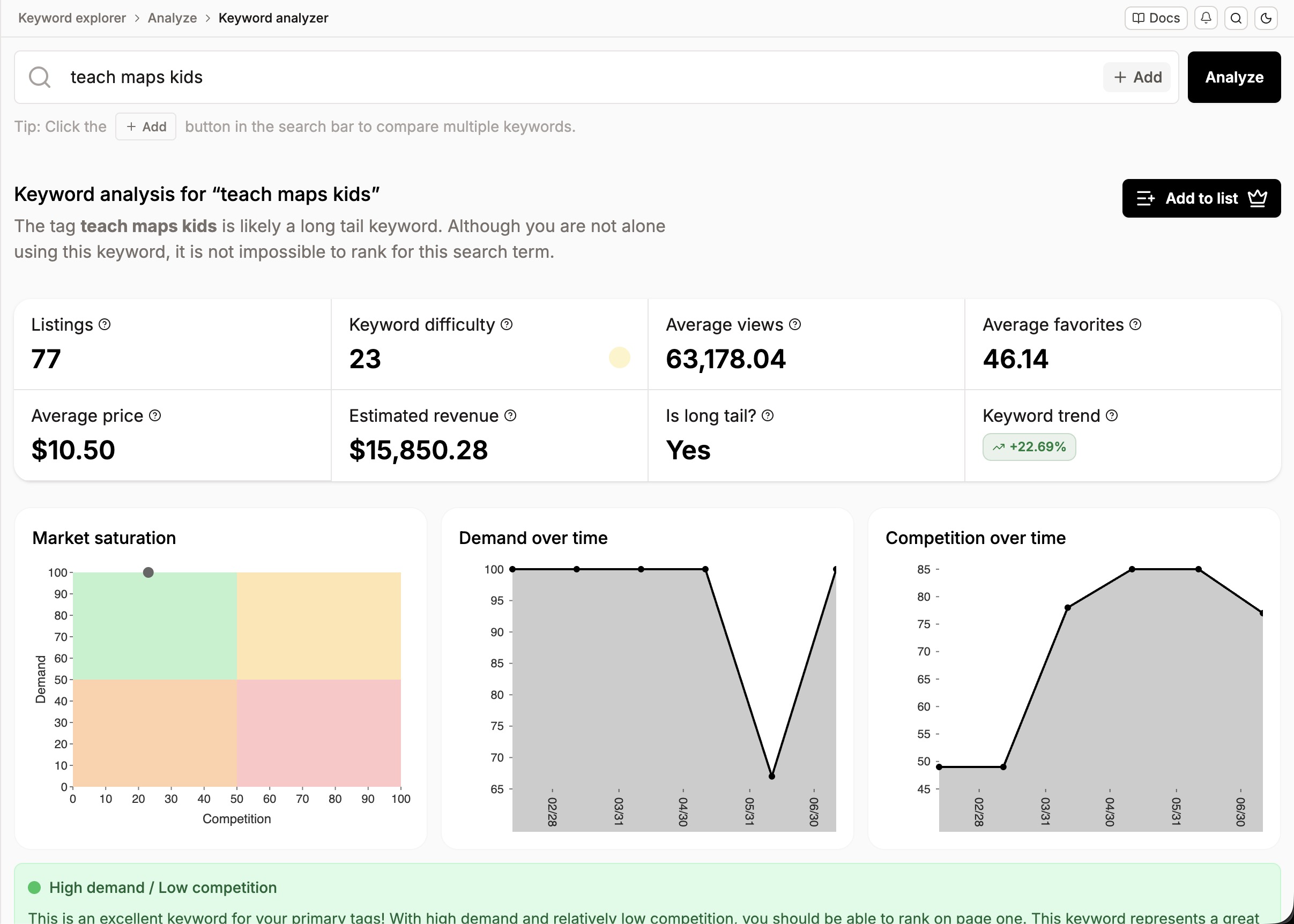
The page opens with Keyword analysis for "your keyword" and a one-line summary. It tells you whether the keyword is likely long tail, and how hard it will be to rank based on its difficulty.
If the keyword is used mostly in a language other than English, you'll see a language badge next to the title. Hover it to see which language.
You get eight stats. Hover the help icon next to any of them for a short definition.
Listings: how many listings are positioned on this keyword.
Keyword difficulty: how hard it is to get a listing onto the first page of Etsy search, from 0 to 100. The colored dot goes from green (easier) to red (harder).
Average views: average views per listing.
Average favorites: average favorites per listing.
Average price: what listings using this keyword charge on average.
Estimated revenue: estimated monthly revenue from this keyword.
Is long tail?: Yes, Maybe, or No. Long-tail keywords are longer, more specific phrases. They're usually less competitive and convert better.
Keyword trend: how demand shifted over the last seven days, shown as a percentage up or down.
High average views usually means real demand. But old listings pile up views over years, so read it next to Keyword trend and the charts below.
Warnings you might see
This keyword can't be added as a tag: the keyword is too long for an Etsy tag (20 characters, or 30 for shops in Germany, France, and the Netherlands), or it uses characters tags don't allow. You can still use it in your title or description.
Single-word keywords: Etsy recommends against one-word tags, so you'll see a reminder with a link to Etsy's Seller Handbook.
Check demand and competition
Below the stats are three charts:
Market saturation: competition on the horizontal axis, demand on the vertical axis. Green is high demand and low competition (the sweet spot). Yellow is high demand and high competition. Orange is low demand and low competition. Red is low demand and high competition.
Demand over time: the keyword's demand score (0 to 100) over time.
Competition over time: how the number of competing listings has changed.
Under the charts, a colored box explains what the keyword's quadrant means for you. For example, whether it's a good primary tag or better as a secondary one.
Find more keywords
Three tabs help you branch out from your keyword:
Related keywords: keywords often used alongside this one.
Similar keywords: keywords that share a base with this one.
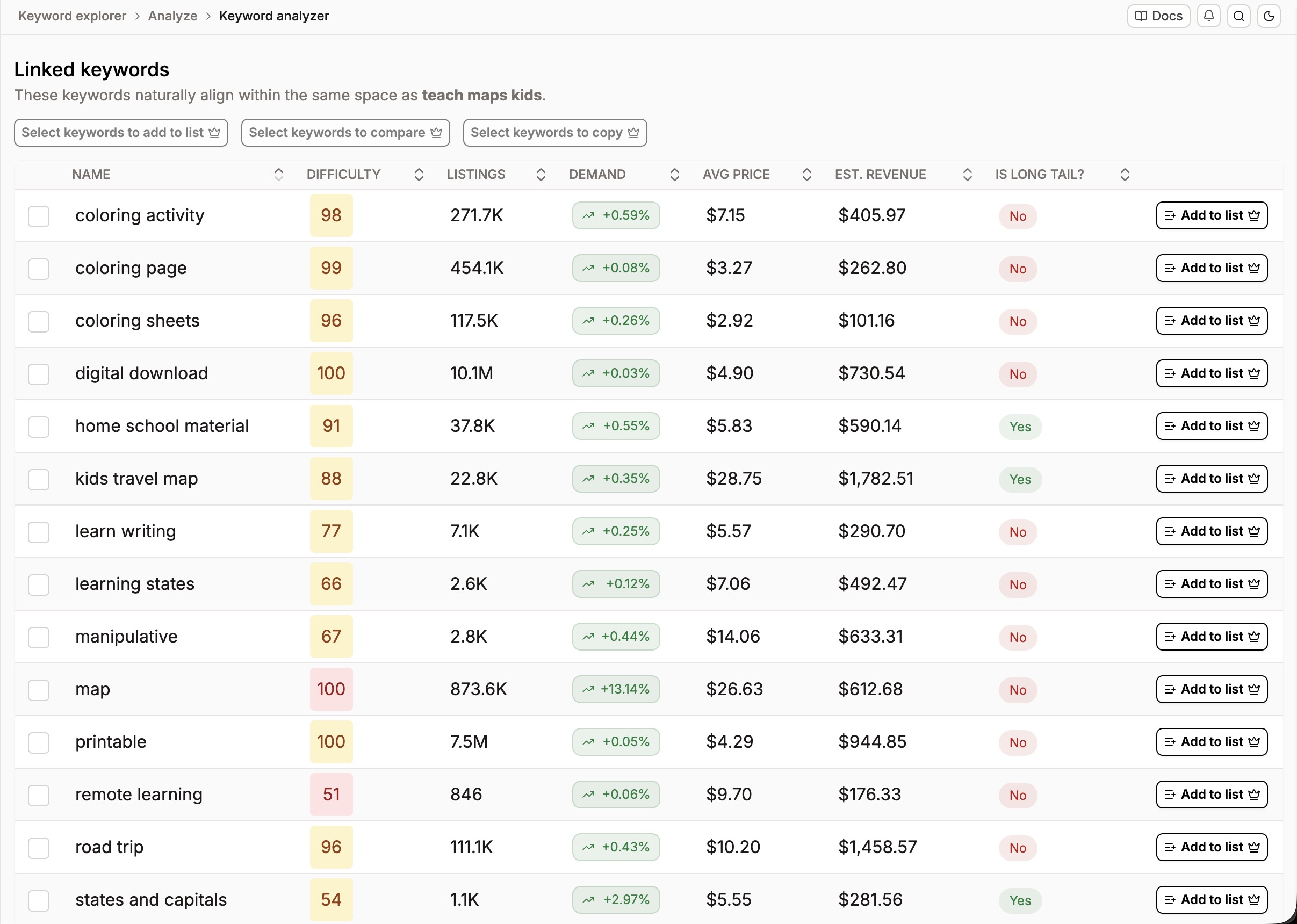
Linked keywords: keywords that naturally sit in the same space.
Each table shows DIFFICULTY, LISTINGS, DEMAND (the change over the last seven days), AVG PRICE, EST. REVENUE, and IS LONG TAIL?. Related keywords also shows OCCURRENCES. Click a column header to sort, or click a row to analyze that keyword.
Tick the checkboxes to select keywords, then:
Add N keywords to list to save them to a keyword list. See Saving tags with Keyword Lists.
Compare N keywords to open them side by side.
Copy N keywords to clipboard to paste them anywhere, separated by commas.
To save just the keyword you searched, click Add to list at the top of the page.
See the top listings
Top listings shows the listings currently ranking for this keyword, so you can see exactly who you're up against. Switch between List and Grid views. In list view, click a column header to sort.
Use Ships to to only see listings that ship to a specific market: United States, United Kingdom, Canada, Australia, Germany, France, the Netherlands, or Turkey. It starts on Worldwide. Listadum remembers your choice for the next keyword.
Click any tag on a listing to open its keyword data without leaving the page.
Related articles
Was this helpful?